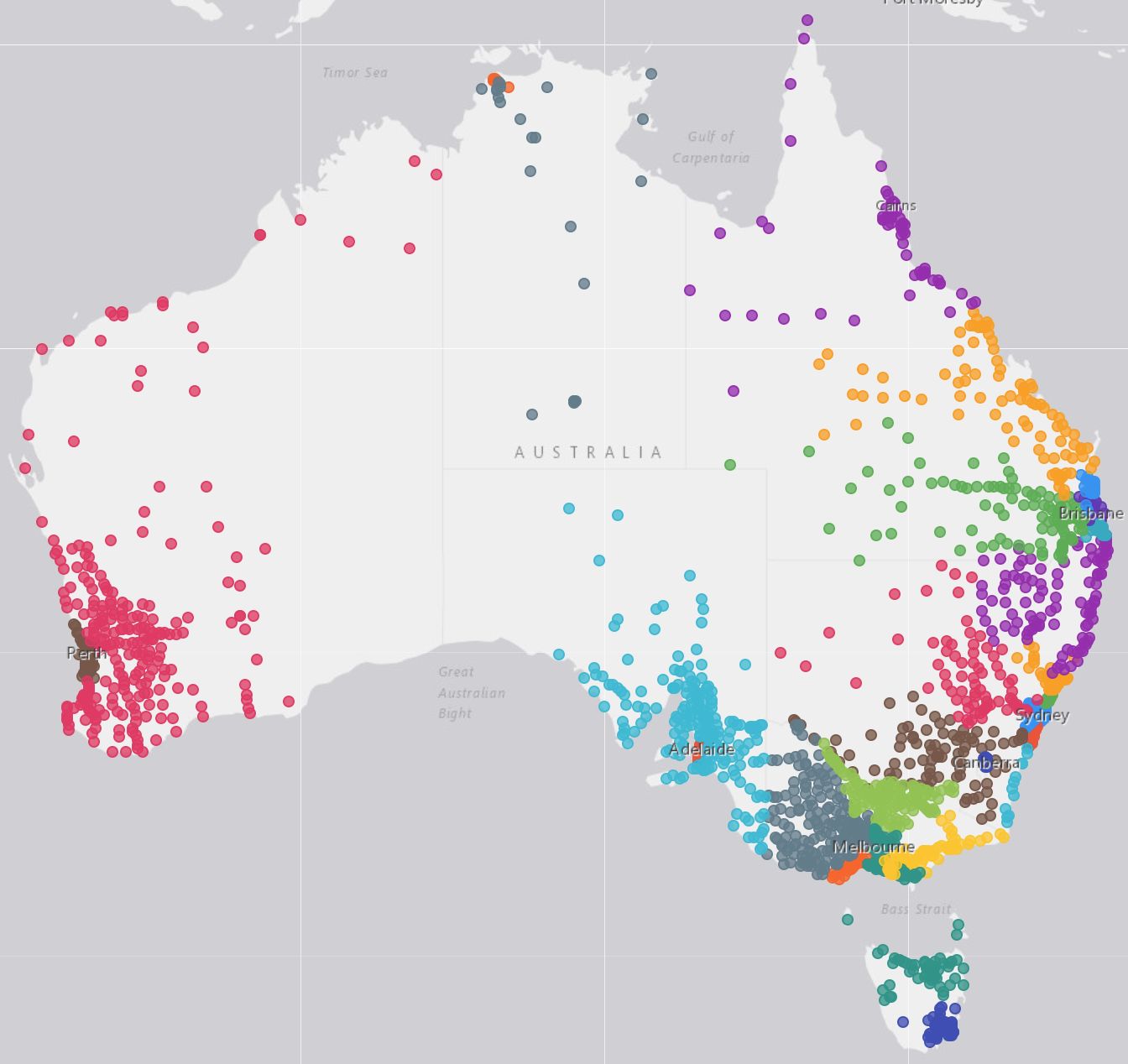
Your new home page in Blink
Blink now opens on a home page: a greeting with what needs you today, one search box, and a set of cards you can arrange, fold or hide. Nothing to set up. Here is what is on it, and how to make it yours.


What's new · October 2026
Blink now opens on a home page: a greeting with what needs you today, one search box, and a set of cards you can arrange, fold or hide. Nothing to set up. Here is what is on it, and how to make it yours.
In short
- The sentence under the greeting tells you what is waiting on you, with a link to each list.
- One search box for bookings, quote requests, legs and runs.
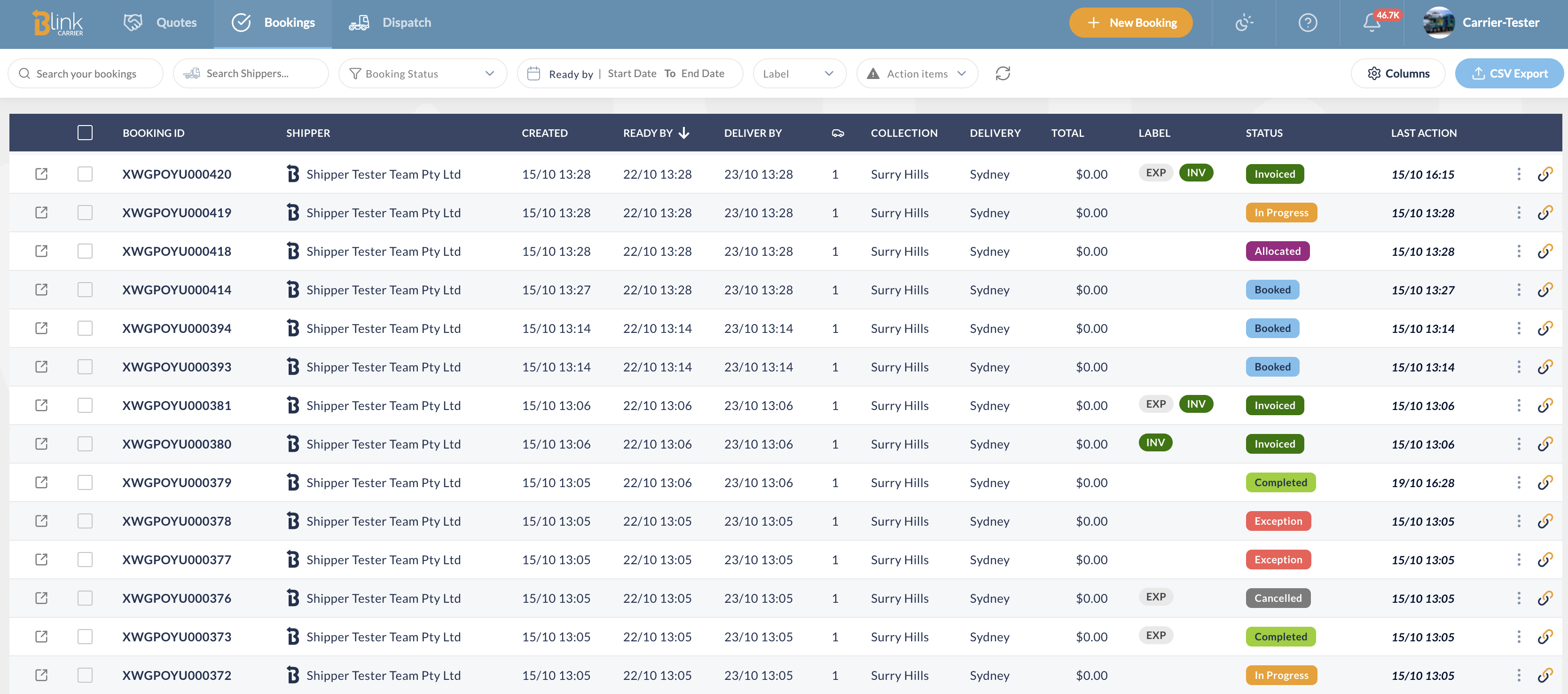
- Cards for your pipeline, today's runs, today's profit, latest bookings, quote requests and notifications. Edit home lets you reorder, resize, hide or add them.
Where is it?
Click the Blink logo at the top left, or open Home. Blink opens on it when you sign in. If you would rather start on the bookings list, see "Do I have to start here?" below.
How does the search work?
Type what you know and press Enter. The tabs under the box choose where to look: Bookings (booking number, VIN, rego, customer or location), Quote requests (number, route or customer), Legs (vehicle, booking or location) and Runs (run name, driver or booking). You land on that list with the search applied, so you can keep filtering from there.
What are the cards?
| Card | What it shows | Who sees it |
|---|---|---|
| Bookings pipeline | A bar of your bookings by status over the last 30 days (or all time), plus quick filters: Action required, Overdue, Ready today, Due today. Click a segment or a pill to open the list filtered. | Everyone |
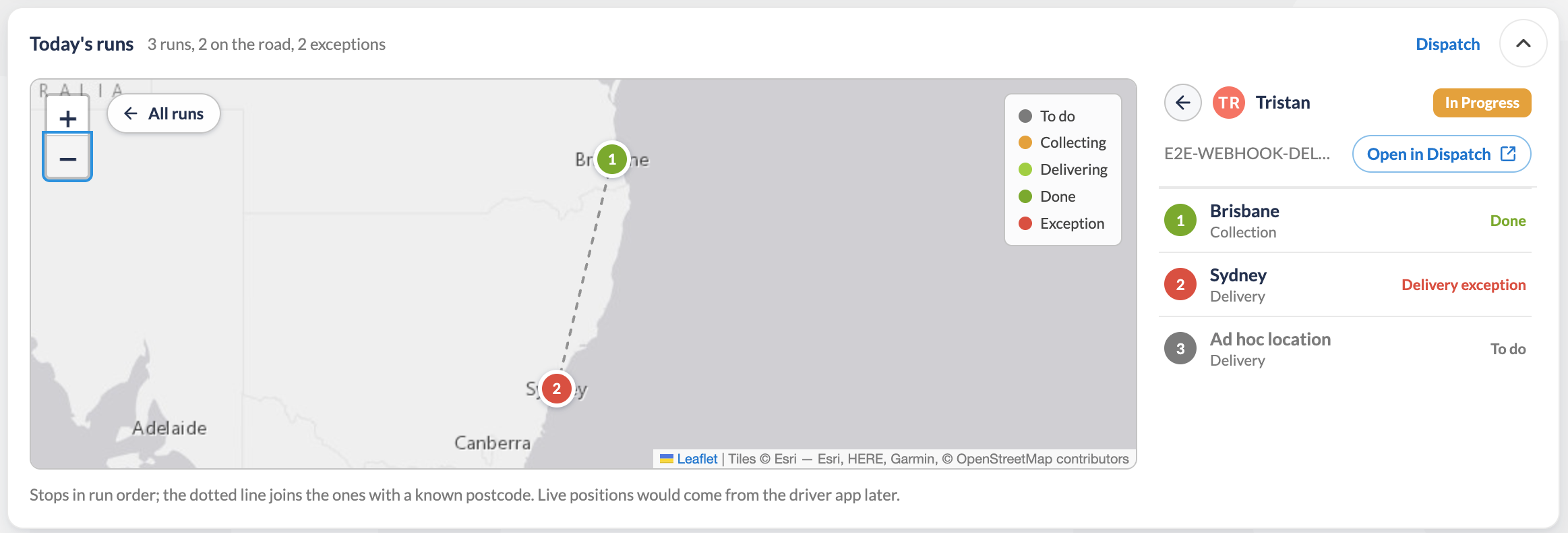
| Today's runs | Today's runs on a map, pinned at their next stop, with the driver, status and progress ("3 of 8 stops"). Pick a run to see its stops in order. | Carriers |
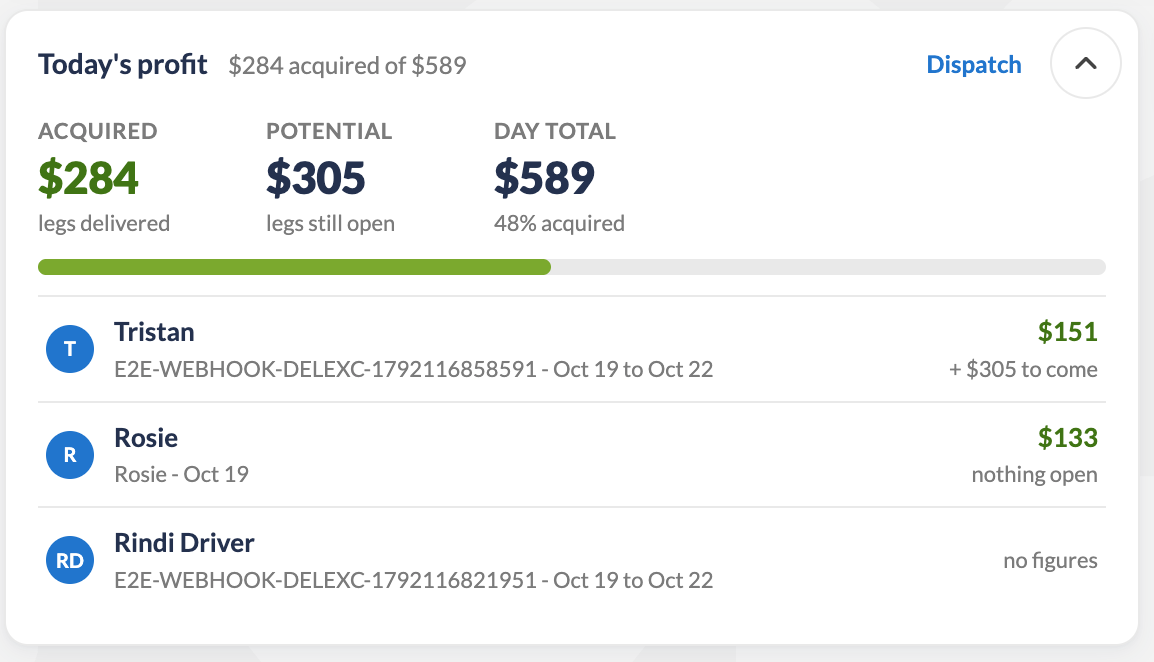
| Today's profit | Profit acquired on delivered legs, profit still open, and the day total, per run. | Carriers with profitability on |
| Latest bookings | The five most recent, with route, ready date, number of items and status. | Everyone |
| Quote requests | Open requests and when they close. A carrier with nothing to quote sees their quotes in, awaiting a decision. | Everyone |
| Notifications | Your latest alerts. A click opens the booking, or the run in Dispatch. | Everyone (hidden by default) |
How do I follow a run from the map?
On Today's runs, click a run in the list or its pin on the map (locations need to have a postcode to be displayed properly). The map zooms to that run and numbers its stops; the list shows each stop with its state (to do, collecting, delivering, done). Open in Dispatch takes you to that run on the Dispatch page. All runs (or Escape) goes back. A stop with no postcode can't be placed on the map and says so.
No runs today? The card offers to plan one from your unallocated legs.
What does Today's profit count?
Acquired is the profit on legs already delivered today. Potential is the profit still sitting on open legs. Day total adds the two and shows how much of it is acquired so far. Each run has its own row, linking to Dispatch. The figures come from the revenue and charges on each leg, so a run without them shows nothing yet.
Can I change what is on it?
Yes. Click Edit home above the cards.
- Reorder: drag a card by its handle, or use the arrows in its header.
- Resize: Wide makes a card span the row, Narrow brings it back.
- Remove: the minus button in the corner. The card moves to the Not on your home tray, where a click adds it back.
- Reset to the default layout if you want to start again.
Click Done when you are happy. Your layout is remembered on this browser, for your user.
Do I have to start here?
No. In Edit home, Open Blink on lets you choose Home or Bookings. With Bookings, the Blink logo opens the bookings list and Home shows as a tab in the menu, so it is one click away when you want it.
Also under Edit home: Auto refresh. Off by default: the cards reload when you come back to the page, or when you click Refresh. On: the open cards reload every 60 seconds while the page is in front.
Where do I read about new features?
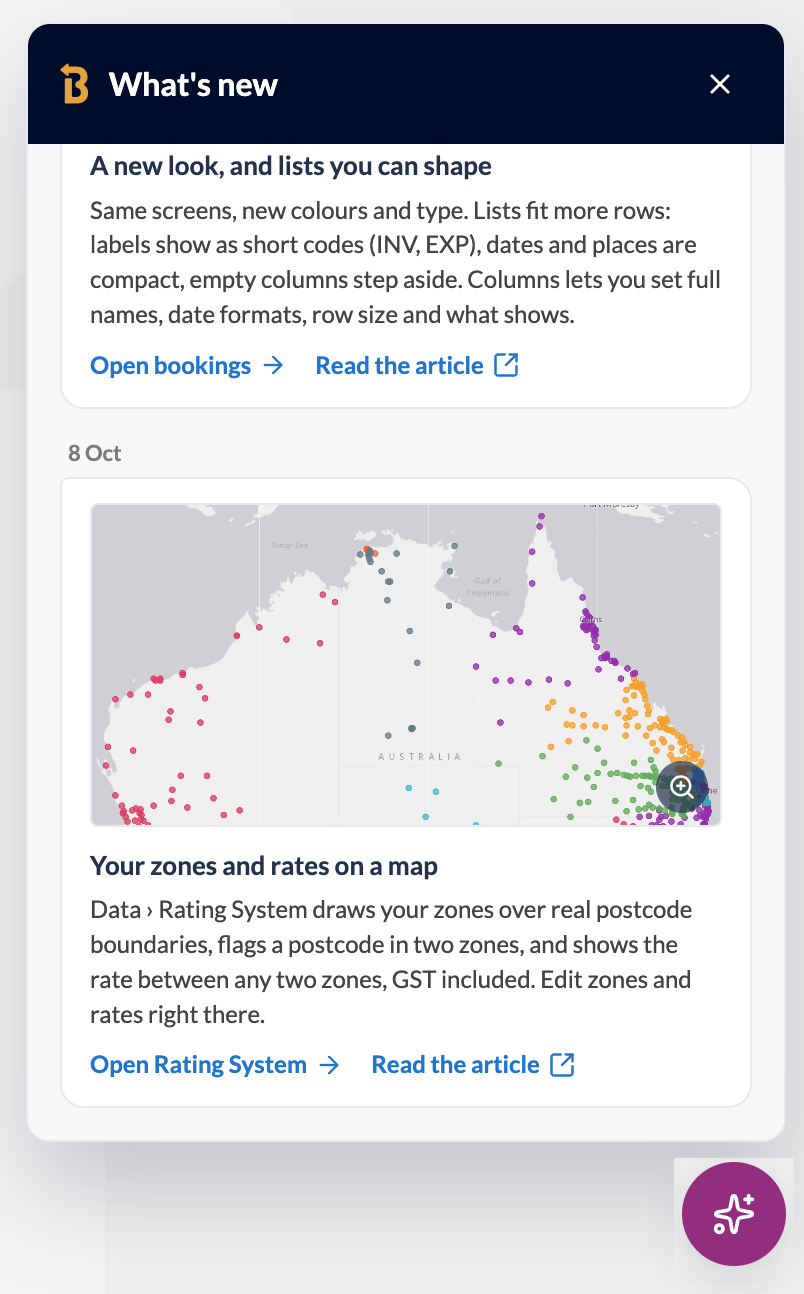
The purple sparkles button in the bottom corner of the home page opens What's new: short notes on each change, with a screenshot you can zoom and a link to the article. A badge counts the notes you haven't opened yet.
Missing a card you would use every morning?
Tell us. The home page is built to grow with what you need first thing.