![blink-logo 1.png]](https://gotoblink.com/hs-fs/hubfs/blink-logo%201.png?height=40&name=blink-logo%201.png)
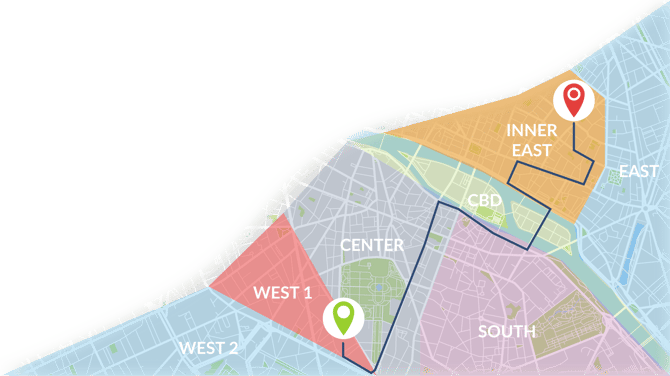
Create a Zone
- Go to Data > Zones
- Click Create Zone
- Enter a zone name (e.g. "Inner West")
- Optionally assign to an Area
- Add postcodes or suburbs
- Click Create Zone
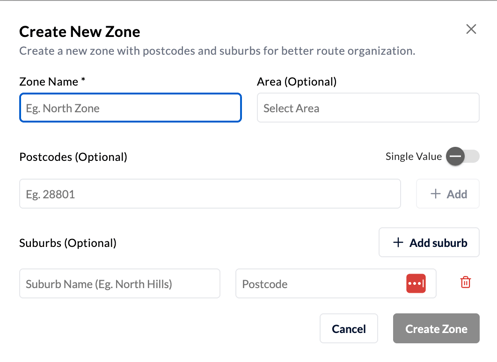
Adding Postcodes
- Single postcodes: Enter one postcode at a time (e.g. 2000)
- Postcode ranges: Toggle "Single Value" off, then enter a range (e.g. 2000-2010)
Click + Add to add more postcodes.
Adding Suburbs
Click + Add suburb, then enter:
- Suburb name (e.g. "Balmain")
- Postcode (e.g.
2041)
This is useful when one postcode covers multiple suburbs and you only want to include specific ones.
Edit a Zone
- Go to Data > Zones
- Click the zone you want to edit on the pen icon on the right hand side
- Update the name, postcodes, or suburbs
- Confirm by clicking on Edit Zone
To remove a postcode or suburb, click the × or bin icon next to it.
Important Rules
- Each postcode can only belong to one zone
- Each suburb-postcode pair can only belong to one zone
- The system will alert you if there's a conflict
If you get a conflict error, add a suburb name to make the postcode more specific.
Delete a Zone
- Go to Data > Zones
- Click the zone
- Click Delete Zone