![blink-logo 1.png]](https://gotoblink.com/hs-fs/hubfs/blink-logo%201.png?height=40&name=blink-logo%201.png)
Examples of how to use areas:
- Interstate carriers can create areas for each state or territory
- Metropolitan carriers can divide cities into sections (North, South, East, West)
- Regional carriers can group zones by distance from depot
Create an Area
- Go to Data > Areas
- Click Create Area
- Enter an area name (e.g. "Greater CBD", "Northern Region")
- Optionally add a description
- Select zones to include by ticking the checkboxes
- Click Create Area
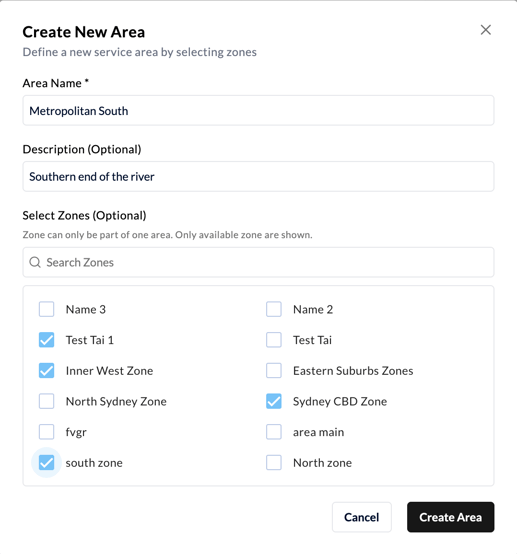
You can create an area without zones and add them later.
Assign Zones to an Area
When creating or editing an area, tick the checkboxes next to zones you want to include.
Important: Each zone can only belong to one area. If a zone is already assigned elsewhere, it won't appear in the list.
Edit an Area
- Go to Data > Areas
- Click the pen icon next to the area you want to edit
- Update the name, description, or zone selections
- Click Edit Area
To remove zones from an area, untick the checkboxes next to them. The zones will remain in your system but won't be part of that area anymore.
How Areas Will Help
Filter quote requests: View quote requests by "From Area" and "To Area" instead of individual postcodes
Search bookings: Find all bookings within a specific region quickly
Dispatch planning: Filter available legs by area to find backloading opportunities
Delete an Area
- Go to Data > Areas
- Click the bin icon next to the area you want to delete
- Confirm deletion
Deleting an area doesn't delete the zones inside it: they'll remain available to assign to other areas.