![blink-logo 1.png]](https://gotoblink.com/hs-fs/hubfs/blink-logo%201.png?height=40&name=blink-logo%201.png)
Why This Matters
While you could already unallocate multiple items by dragging them off a run, this wasn't always practical: especially when items were spread across different stops or when you needed precision over speed.
The menu option makes bulk unallocate more deliberate: select exactly what you want to remove, see the count before you act, and unallocate with one click.
How It Works
- Select multiple items within a run by ticking their checkboxes
- Open the 3-dot menu on any of the selected items
- Click "Unallocate (n)" where n shows exactly how many items will be unallocated
All selected items are removed from the run in one action.
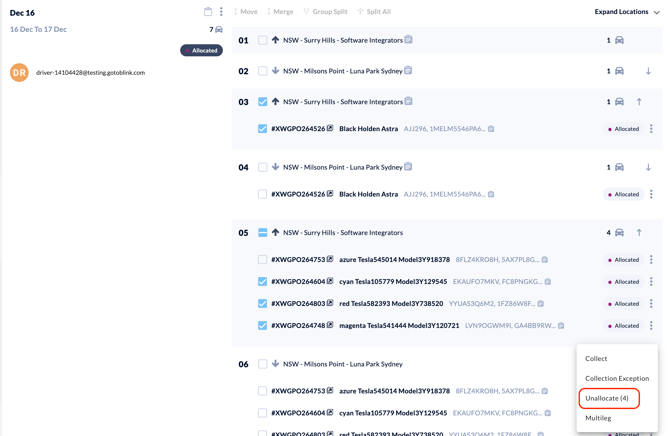
Two Ways to Unallocate Multiple Items
Drag and drop: Fast for moving items back to unallocated
Menu option: More precise when you want to confirm the count before unallocating
Important Details
- Run-specific selection: Only items selected within the current run are affected. If you have items selected on other runs, they won't be unallocated
- Count indicator: The menu always shows how many items will be unallocated (e.g., "Unallocate (3)")
- Single item still works: If you open the menu on an unselected item, you'll see "Unallocate" and only that item will be affected
Example
Run 04 has 5 items allocated across 3 stops. You need to remove 3 specific items:
- Tick the 3 items you want to remove
- Open the menu on any of those 3 items
- See "Unallocate (3)" in the menu
- Click once: all 3 items are removed from the run
Key Benefit: More control when reorganising allocations: especially useful when items are across multiple stops or when you need to double-check what you're about to unallocate.